XY Vending
Settings for XY Vending machines
Which settings you need depends on the display of your XY Vending machine. First choose your device type – the matching steps are shown underneath.
Device type 1
XY Vending machine with a small display
These settings apply to all XY Vending machines with a small display.
Machine versionThe machine version currently in use is 5.3.32. How to install it is described below under Update guide via USB stick.
Open the main menu
In the machine menu, press the yellow button and enter the following code: 8 – 8 – 8 – 8 – 8 – 8
Set up the age check
Go to the menu item Allgemeines / General and change the Alterskontrolle / Age Set setting – this is mandatory:
Set the payment settings
Go to Zahlungseinstellungen / Payment System and activate the item Bargeldlos – Telemetrie / Unionpay – POS.
End the menu
End the menu.
Restart the machine
Switch the machine off at the main switch and then on again.
Setting up age verification
Age verification currently only works with a small detour: for the SENVEND terminal to be recognised correctly as an age verification device, the machine has to be restarted a second time after a complete restart – without switching the SENVEND terminal off. There are two ways to do this:
Variant 1 – second reset
After the machine and terminal have restarted, press the white button (VMC Reset) on the machine's circuit board. This restarts only the machine while the terminal stays active, so age verification can initialise correctly.
Variant 2 – disconnect the XY telemetry
The cable of the XY telemetry is located in the upper left technician flap. If it is unplugged and the machine is switched on, the start-up takes longer. During that time the SENVEND terminal can register with the XY system as an age verification device and is initialised correctly.
ICT DCM5 must be removedYou must remove the ICT DCM5 here – using both systems at the same time is not possible.
Then make the following settings in the SENVEND APP my.senvend:
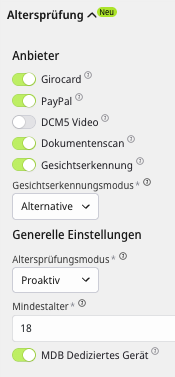
Now you can set the age restriction for your trays:
Open the menu item Allgemeines
Go to the menu item Allgemeines / General.
Change the age check
Change the Alterskontrolle / Age Set setting – this is mandatory:
End the menu
End the menu.
Update guide via USB stick
You need an ordinary USB stick to install the update.
Download the update
Download the ZIP file via the update link provided.
Unpack the ZIP file
Unpack the downloaded ZIP file. After unpacking you get the folder XY. This folder already contains all the files and subfolders you need.
ImportantThe folder XY must be copied to the USB stick completely and unpacked. Do not simply copy the ZIP file itself onto the stick.
Prepare the USB stick
Use an ordinary, smaller USB stick. Recommended:
- 32 GB maximum
- no special requirements
- other files on the USB stick are generally not a problem
All that matters is that the fully unpacked folder XY is on the USB stick.
Insert the USB stick
Insert the prepared USB stick into the USB port of the main board. The USB port is located at the bottom right of the main board.
Start the update
Press the white button once briefly. The update is then loaded from the USB stick and installed automatically.
Wait for the update to finish
Do not remove the USB stick during the update and do not switch the machine off or disconnect it from the power supply. Once the update has finished you can remove the USB stick again.
Device type 2
Android touch with Storefront
XY Vending machines with an Android touch display are operated together with SENVEND Storefront.
Info coming soonWe are currently putting together the information on installing SENVEND Storefront. Until then our support team will help you directly: help@senvend.com or +49 231 4499210.
Not sure which device type you have?
Send us a photo of the display or the type plate – we will tell you which settings apply to your machine.



XY Vending
Settings for XY Vending machines
Which settings you need depends on the display of your XY Vending machine. First choose your device type – the matching steps are shown underneath.
Device type 1
XY Vending machine with a small display
These settings apply to all XY Vending machines with a small display.
Machine versionThe machine version currently in use is 5.3.32. How to install it is described below under Update guide via USB stick.
Open the main menu
In the machine menu, press the yellow button and enter the following code: 8 – 8 – 8 – 8 – 8 – 8
Set up the age check
Go to the menu item Allgemeines / General and change the Alterskontrolle / Age Set setting – this is mandatory:
Set the payment settings
Go to Zahlungseinstellungen / Payment System and activate the item Bargeldlos – Telemetrie / Unionpay – POS.
End the menu
End the menu.
Restart the machine
Switch the machine off at the main switch and then on again.
Setting up age verification
Age verification currently only works with a small detour: for the SENVEND terminal to be recognised correctly as an age verification device, the machine has to be restarted a second time after a complete restart – without switching the SENVEND terminal off. There are two ways to do this:
Variant 1 – second reset
After the machine and terminal have restarted, press the white button (VMC Reset) on the machine's circuit board. This restarts only the machine while the terminal stays active, so age verification can initialise correctly.
Variant 2 – disconnect the XY telemetry
The cable of the XY telemetry is located in the upper left technician flap. If it is unplugged and the machine is switched on, the start-up takes longer. During that time the SENVEND terminal can register with the XY system as an age verification device and is initialised correctly.
ICT DCM5 must be removedYou must remove the ICT DCM5 here – using both systems at the same time is not possible.
Then make the following settings in the SENVEND APP my.senvend:
Now you can set the age restriction for your trays:
Open the menu item Allgemeines
Go to the menu item Allgemeines / General.
Change the age check
Change the Alterskontrolle / Age Set setting – this is mandatory:
End the menu
End the menu.
Update guide via USB stick
You need an ordinary USB stick to install the update.
Download the update
Download the ZIP file via the update link provided.
Unpack the ZIP file
Unpack the downloaded ZIP file. After unpacking you get the folder XY. This folder already contains all the files and subfolders you need.
ImportantThe folder XY must be copied to the USB stick completely and unpacked. Do not simply copy the ZIP file itself onto the stick.
Prepare the USB stick
Use an ordinary, smaller USB stick. Recommended:
- 32 GB maximum
- no special requirements
- other files on the USB stick are generally not a problem
All that matters is that the fully unpacked folder XY is on the USB stick.
Insert the USB stick
Insert the prepared USB stick into the USB port of the main board. The USB port is located at the bottom right of the main board.
Start the update
Press the white button once briefly. The update is then loaded from the USB stick and installed automatically.
Wait for the update to finish
Do not remove the USB stick during the update and do not switch the machine off or disconnect it from the power supply. Once the update has finished you can remove the USB stick again.
Device type 2
Android touch with Storefront
XY Vending machines with an Android touch display are operated together with SENVEND Storefront.
Info coming soonWe are currently putting together the information on installing SENVEND Storefront. Until then our support team will help you directly: help@senvend.com or +49 231 4499210.
Not sure which device type you have?
Send us a photo of the display or the type plate – we will tell you which settings apply to your machine.