GPE
Settings for your GPE machine
Which steps you need depends on the control panel of your GPE machine. First choose your device type – the settings themselves are the same for both.
Current software versionsThe settings described on this page refer to the software versions below. Check the version on your machine and have it updated if necessary.
Device type 1
GPE Touch
These settings apply to all GPE machines with a touch display.
Check the software version
The current software version for GPE Touch is 26.5.29.1. Check the version on the machine and have it updated if necessary.
Open the menu
Open the menu on the machine.
Open the payment configuration
Open the Zahlungskonfig (payment configuration) menu item.
Set the parameter
Set the following parameter:
Exit the menu
Exit the menu.
Restart the machine
Switch the machine off at the main switch and then on again.
Age verification
Currently only possible to a limited extentAge verification can be set up via my.senvend.com – but only if no cash systems are used.
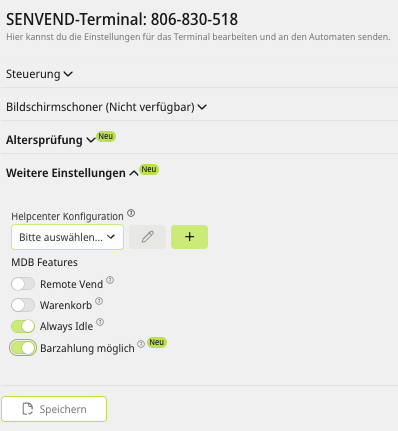
Settings in my.senvend.com
This is what the optimal settings in my.senvend.com look like:
Device type 2
GPE with selection keypad
These settings apply to all GPE machines that have a keypad and a blue display and no DIP switches on the board.
Check the software version
Make sure your machine has a blue display. The current software version for these machines is Z0331.1 – check it on the machine and have it updated if necessary.
Open the menu
Open the menu on the machine.
Open the payment configuration
Open the Zahlungskonfig (payment configuration) menu item.
Set the parameter
Set the following parameter:
Exit the menu
Exit the menu.
Restart the machine
Switch the machine off at the main switch and then on again.
Age verification
Currently only possible to a limited extentAge verification can be set up via my.senvend.com – but only if no cash systems are used.
Settings in my.senvend.com
This is what the optimal settings in my.senvend.com look like:
Not sure which device type you have?
Send us a photo of the control panel – we will tell you which settings apply to your machine.

 +49 231 4499210
GPE
Settings for your GPE machine
Which steps you need depends on the control panel of your GPE machine. First choose your device type – the settings themselves are the same for both.
Current software versionsThe settings described on this page refer to the software versions below. Check the version on your machine and have it updated if necessary.
Device type 1
GPE Touch
These settings apply to all GPE machines with a touch display.
Check the software version
The current software version for GPE Touch is 26.5.29.1. Check the version on the machine and have it updated if necessary.
Open the menu
Open the menu on the machine.
Open the payment configuration
Open the Zahlungskonfig (payment configuration) menu item.
Set the parameter
Set the following parameter:
Exit the menu
Exit the menu.
Restart the machine
Switch the machine off at the main switch and then on again.
Age verification
Currently only possible to a limited extentAge verification can be set up via my.senvend.com – but only if no cash systems are used.
Settings in my.senvend.com
This is what the optimal settings in my.senvend.com look like:
Device type 2
GPE with selection keypad
These settings apply to all GPE machines that have a keypad and a blue display and no DIP switches on the board.
Check the software version
Make sure your machine has a blue display. The current software version for these machines is Z0331.1 – check it on the machine and have it updated if necessary.
Open the menu
Open the menu on the machine.
Open the payment configuration
Open the Zahlungskonfig (payment configuration) menu item.
Set the parameter
Set the following parameter:
Exit the menu
Exit the menu.
Restart the machine
Switch the machine off at the main switch and then on again.
Age verification
Currently only possible to a limited extentAge verification can be set up via my.senvend.com – but only if no cash systems are used.
Settings in my.senvend.com
This is what the optimal settings in my.senvend.com look like:
Not sure which device type you have?
Send us a photo of the control panel – we will tell you which settings apply to your machine.