Overview
How your SENVEND gets online
Your Verifone UX700 needs an active internet connection for payment, telemetry, and age verification to work. There are four ways to do this – choose the one that fits your location.
Wi-Fi
Wireless and flexible – ideal when Wi-Fi is available on site.
LAN
Stable and reliable via network cable – ideal for continuous use.
RUT200 router
Included with every terminal – a router with a SIM card, optionally as a backup for your own line.
USB modem
Now only intended for battery-powered VAPER machines.
Set up Wi-Fi
Connect the UX700 to Wi-Fi
To set up Wi-Fi, first open the service page on the terminal. There are two ways to do this.
Open the service page – via my.SENVEND – if internet is already available
In my.SENVEND you can open the service page remotely:
- Machines
- Select machine
- Terminal
- Control
- Show service screen
The service page then appears on your terminal's display. This method only works if an active internet connection already exists.
Open the service page – directly on the terminal – without an existing internet connection
- Open the service flap on the back of your terminal (where the white sticker with the serial number is located).
- On the retaining strap you'll find a small plastic pin. Insert it briefly, once, into the hole underneath.
- The service page opens on the terminal.
Connect Wi-Fi
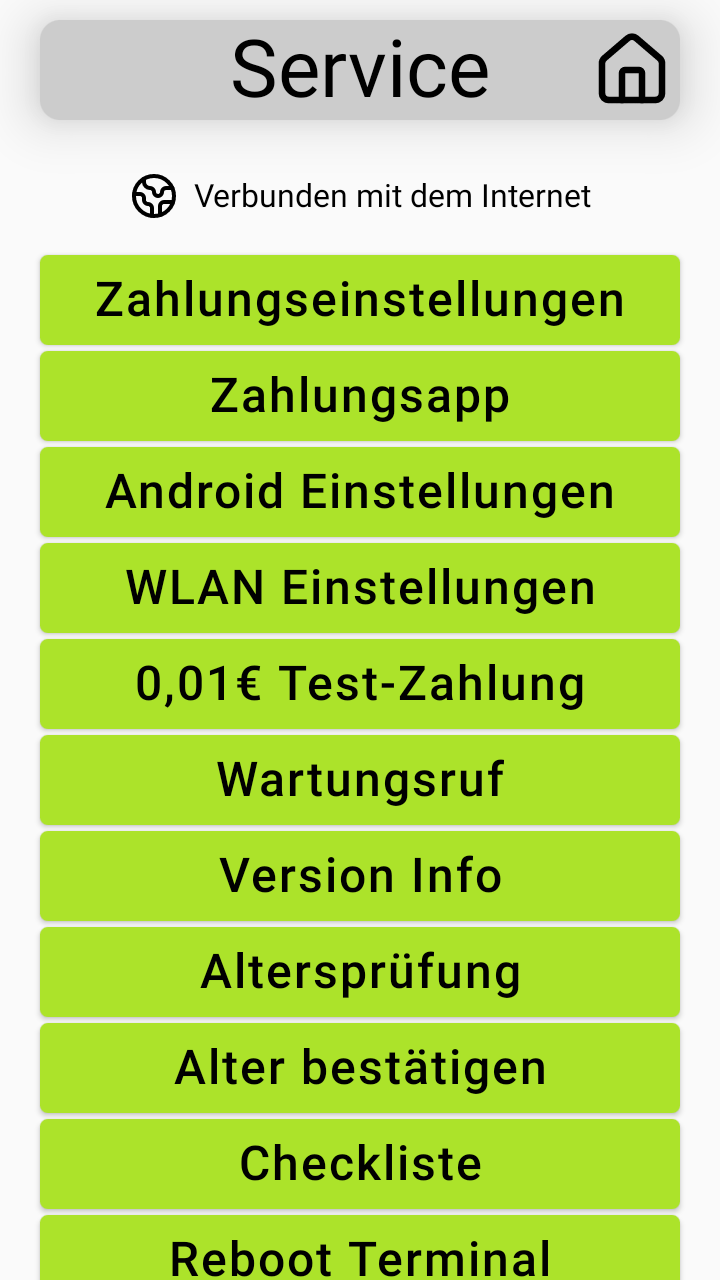
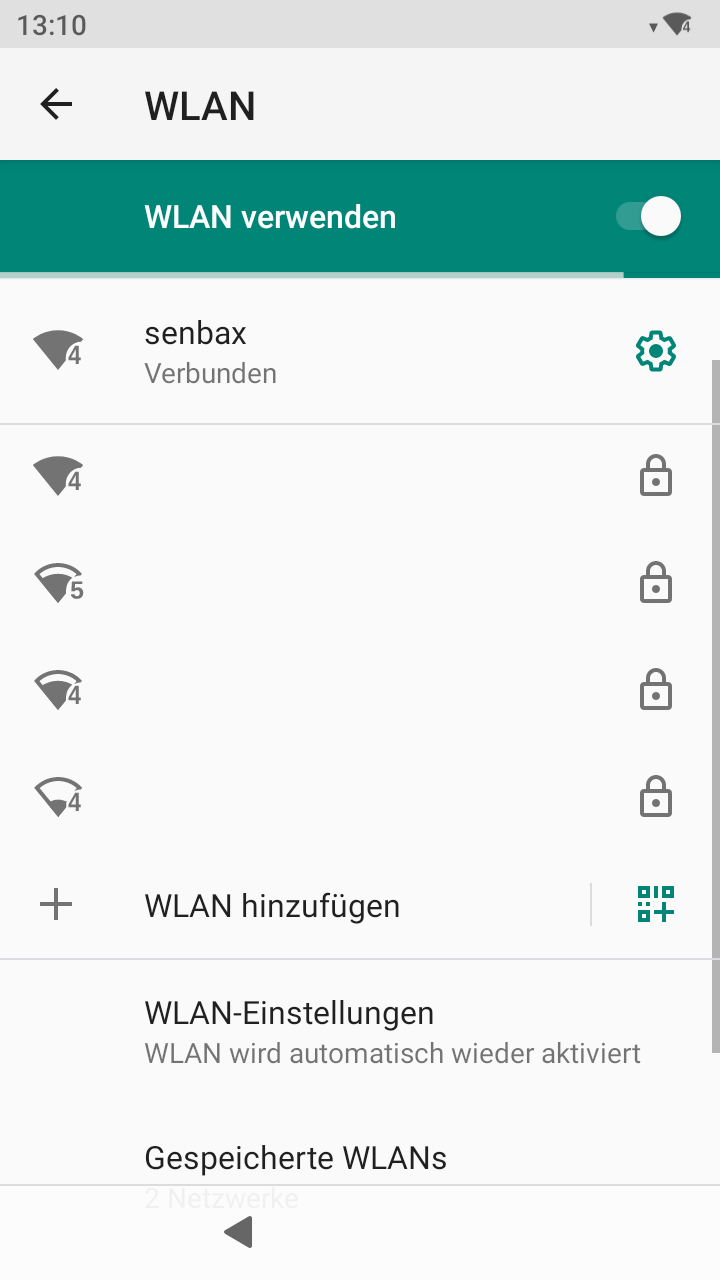
On the terminal, tap Wi-Fi settings. Turn on Wi-Fi if needed, select your network, enter the password, and connect the terminal.
Video guide
Connect via LAN
Connect the UX700 via LAN
A stable internet connection via network cable – reliable, fast, and ideal for continuous use.
The three RJ45 ports on the UX700
The UX700 has three RJ45 sockets. Only one of them is the network port for the internet.
Silver port – this is where the network cable for the internet goes.
Interface to other systems – not for the internet.
Interface to other systems – not for the internet.
Plug the network cable into the silver LAN port
Plug the network cable into the silver LAN port of the UX700 – not into COM 1 or COM 2. Connect the other end to your router or network outlet.
Check the connection
As soon as the cable is connected, the UX700 establishes the connection automatically. You can tell the LAN connection is active by the network icon in the terminal's status area.
Standard solution
RUT200 router
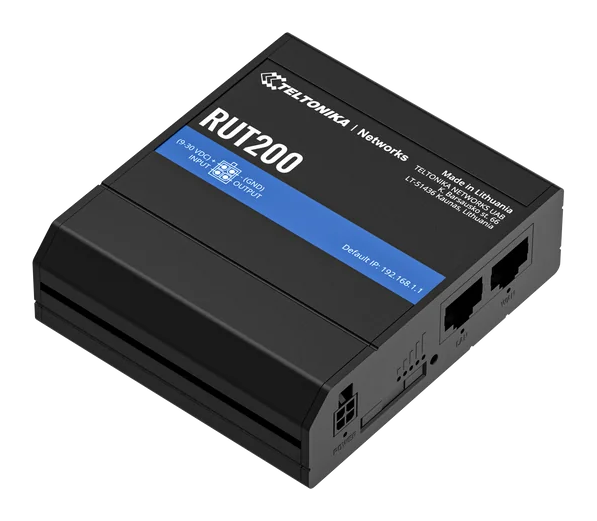
Every SENVEND terminal comes with a Teltonika RUT200 router with a built-in SIM card. By default, you connect the terminal to the router's LAN port via network cable – the internet comes via the SIM card. Optionally, you can use the RUT200 as a failover for your own internet line.
Included in the box
Every SENVEND terminal is shipped with a RUT200, including an inserted SIM card.
Simply connected
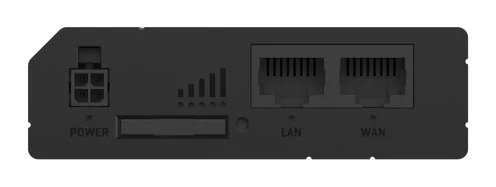
Terminal via network cable into the RUT200's LAN port – done.
Optionally as a backup
Your own internet line into the WAN port: if it fails, the SIM card takes over.
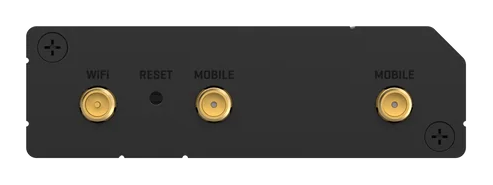
WAN internet & SIM backup
The RUT200 can be operated in two ways.
Standard: internet via the SIM card
- Connect the terminal with a network cable (RJ45) to a LAN port of the RUT200.
- On the terminal, the cable goes into the silver LAN port – not into COM 1 or COM 2.
- The SIM card in the router establishes the internet connection. No further connection is needed.
Option: your own internet with SIM backup
- Plug your internet line (e.g. from a DSL, cable, or fiber modem) into the WAN port of the RUT200.
- The terminal stays connected to the LAN port of the router.
- If the external internet fails, the router automatically switches to the SIM connection.
Quick check
- Terminal at the RUT200's LAN port – and at the terminal's silver LAN port
- For backup operation: your own internet line at the WAN port
- Router switched on
Connect SENVEND to the RUT200 Wi-Fi
The RUT200 provides its own Wi-Fi. Use it to connect your SENVEND terminal to the internet.
Have the RUT200's login details ready
You'll find the network name (SSID) and Wi-Fi password on the sticker on the router.
Open the service page on the terminal
Open the service page via my.SENVEND or with the plastic pin on the back of the terminal – exactly as described in the Wi-Fi section.
Select the RUT200's Wi-Fi
Tap Wi-Fi settings, select the RUT200's network, enter the password, and connect the terminal.
Status & LEDs
The LEDs on the front let you see at a glance whether the RUT200 is powered and connected.
Power supply. Lights up as soon as the router is powered and ready.
Internet line on the WAN port. Lights up or blinks during an active connection and data traffic.
Device on the LAN port. Lights up or blinks when a device is connected and transferring data.
Mobile connection via the SIM card. Indicates that the router is registered on the mobile network.
USB modem
USB modem – use & replacement
USB modems are now only used for battery-powered VAPER machines, as well as for cigarette machines with Graz & Fricke or SECO controllers. For all other machines we recommend Wi-Fi, LAN, or the RUT200 router.
When is a USB modem used?
A USB modem is used exclusively for battery-powered VAPER machines. Battery operation enables a mobile internet connection via the USB modem when there is no fixed network infrastructure on site.
What applies to other machines?
For all other machines, we recommend a stable, future-proof connection via Wi-Fi, LAN or the RUT200 router.
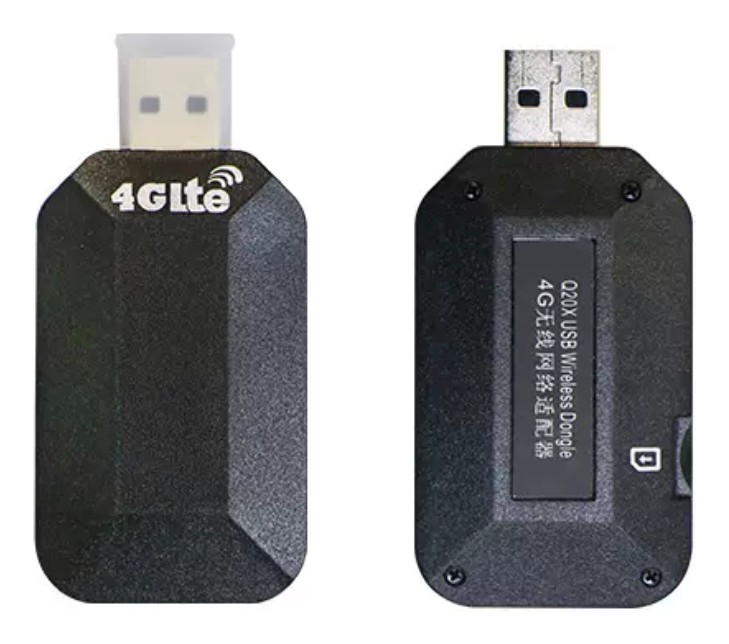
What to do if a USB modem is still in use
Check the existing USB modem
Is a USB modem still in use on your machine?
Contact support
Contact our support team and let us know which machine is affected.
Get the right solution
You'll receive the suitable alternative from us: Wi-Fi, LAN, or RUT200 router.
Frequently asked questions
Can I keep using the USB modem?
On battery-powered VAPER machines, the USB modem can still be used. On all other machines, we switch the internet connection to Wi-Fi, LAN, or the RUT200 router. If you're not sure which solution fits your machine, feel free to reach out to us.
Which alternative fits my location?
That depends on the internet connection available at the location:
LAN
If a network outlet is available, LAN is usually the most stable solution.
Wi-Fi
If reliable Wi-Fi is available on site, you can connect the terminal to it directly.
RUT200 router
If there's neither LAN nor Wi-Fi, or the machine is used at changing locations, we recommend the RUT200 router with a mobile connection.
How can I tell whether my terminal is connected via Wi-Fi or LAN?
On the terminal, swipe the screen from top to bottom. In the top right, you can tell from the icon which connection is currently in use:
LAN
If you see the network/LAN icon, the terminal is connected via LAN.
Wi-Fi
If you see the filled Wi-Fi icon, the terminal is connected to a Wi-Fi network.
My terminal shows "No internet connection." What can I do?
You can check the current connection status directly in the terminal's service menu. If there's no internet connection, this is also shown on the terminal's screensaver page.
Then check whether Wi-Fi, LAN, or the RUT200 router are properly connected.
Where do I need to position the RUT200's antennas?
The RUT200 has two antennas:
Rod antenna
The rod antenna stays inside the machine housing.
Whip antenna
The whip antenna is the one with the longer cable. It should be positioned outside the service drawer wherever possible, so mobile reception isn't unnecessarily impaired.
Make sure the antennas and cables don't get pinched or damaged.
The RUT200 is connected, but I have no internet. How do I find the fault?
Go through the following points in order:
- Check the power supply
Check whether the LEDs on the RUT200 are lit. If no LED is lit, the router likely has no power. In this case, check the power supply and the plug connections. - Check the mobile connection
Check the RUT200's status LEDs. They show you whether a mobile or internet connection exists. If the LEDs are blinking, the router is currently searching for mobile reception. - Check the network connection to the UX700
Check the network cable between the RUT200 and the UX700. The cable must be plugged in properly on both ends. Also check whether the UX700's network port shows corresponding network activity. - Check the terminal
Then check on the UX700 whether a LAN connection is detected and whether the message "No internet connection" is still shown. If the problem persists, please contact our support team.



Overview
How your SENVEND gets online
Your Verifone UX700 needs an active internet connection for payment, telemetry, and age verification to work. There are four ways to do this – choose the one that fits your location.
Wi-Fi
Wireless and flexible – ideal when Wi-Fi is available on site.
LAN
Stable and reliable via network cable – ideal for continuous use.
RUT200 router
Included with every terminal – a router with a SIM card, optionally as a backup for your own line.
USB modem
Now only intended for battery-powered VAPER machines.
Set up Wi-Fi
Connect the UX700 to Wi-Fi
To set up Wi-Fi, first open the service page on the terminal. There are two ways to do this.
Open the service page – via my.SENVEND – if internet is already available
In my.SENVEND you can open the service page remotely:
- Machines
- Select machine
- Terminal
- Control
- Show service screen
The service page then appears on your terminal's display. This method only works if an active internet connection already exists.
Open the service page – directly on the terminal – without an existing internet connection
- Open the service flap on the back of your terminal (where the white sticker with the serial number is located).
- On the retaining strap you'll find a small plastic pin. Insert it briefly, once, into the hole underneath.
- The service page opens on the terminal.
Connect Wi-Fi
On the terminal, tap Wi-Fi settings. Turn on Wi-Fi if needed, select your network, enter the password, and connect the terminal.
Video guide
Connect via LAN
Connect the UX700 via LAN
A stable internet connection via network cable – reliable, fast, and ideal for continuous use.
The three RJ45 ports on the UX700
The UX700 has three RJ45 sockets. Only one of them is the network port for the internet.
Silver port – this is where the network cable for the internet goes.
Interface to other systems – not for the internet.
Interface to other systems – not for the internet.
Plug the network cable into the silver LAN port
Plug the network cable into the silver LAN port of the UX700 – not into COM 1 or COM 2. Connect the other end to your router or network outlet.
Check the connection
As soon as the cable is connected, the UX700 establishes the connection automatically. You can tell the LAN connection is active by the network icon in the terminal's status area.
Standard solution
RUT200 router
Every SENVEND terminal comes with a Teltonika RUT200 router with a built-in SIM card. By default, you connect the terminal to the router's LAN port via network cable – the internet comes via the SIM card. Optionally, you can use the RUT200 as a failover for your own internet line.
Included in the box
Every SENVEND terminal is shipped with a RUT200, including an inserted SIM card.
Simply connected
Terminal via network cable into the RUT200's LAN port – done.
Optionally as a backup
Your own internet line into the WAN port: if it fails, the SIM card takes over.
WAN internet & SIM backup
The RUT200 can be operated in two ways.
Standard: internet via the SIM card
- Connect the terminal with a network cable (RJ45) to a LAN port of the RUT200.
- On the terminal, the cable goes into the silver LAN port – not into COM 1 or COM 2.
- The SIM card in the router establishes the internet connection. No further connection is needed.
Option: your own internet with SIM backup
- Plug your internet line (e.g. from a DSL, cable, or fiber modem) into the WAN port of the RUT200.
- The terminal stays connected to the LAN port of the router.
- If the external internet fails, the router automatically switches to the SIM connection.
Quick check
- Terminal at the RUT200's LAN port – and at the terminal's silver LAN port
- For backup operation: your own internet line at the WAN port
- Router switched on
Connect SENVEND to the RUT200 Wi-Fi
The RUT200 provides its own Wi-Fi. Use it to connect your SENVEND terminal to the internet.
Have the RUT200's login details ready
You'll find the network name (SSID) and Wi-Fi password on the sticker on the router.
Open the service page on the terminal
Open the service page via my.SENVEND or with the plastic pin on the back of the terminal – exactly as described in the Wi-Fi section.
Select the RUT200's Wi-Fi
Tap Wi-Fi settings, select the RUT200's network, enter the password, and connect the terminal.
Status & LEDs
The LEDs on the front let you see at a glance whether the RUT200 is powered and connected.
Power supply. Lights up as soon as the router is powered and ready.
Internet line on the WAN port. Lights up or blinks during an active connection and data traffic.
Device on the LAN port. Lights up or blinks when a device is connected and transferring data.
Mobile connection via the SIM card. Indicates that the router is registered on the mobile network.
USB modem
USB modem – use & replacement
USB modems are now only used for battery-powered VAPER machines, as well as for cigarette machines with Graz & Fricke or SECO controllers. For all other machines we recommend Wi-Fi, LAN, or the RUT200 router.
When is a USB modem used?
A USB modem is used exclusively for battery-powered VAPER machines. Battery operation enables a mobile internet connection via the USB modem when there is no fixed network infrastructure on site.
What applies to other machines?
For all other machines, we recommend a stable, future-proof connection via Wi-Fi, LAN or the RUT200 router.
What to do if a USB modem is still in use
Check the existing USB modem
Is a USB modem still in use on your machine?
Contact support
Contact our support team and let us know which machine is affected.
Get the right solution
You'll receive the suitable alternative from us: Wi-Fi, LAN, or RUT200 router.
Frequently asked questions
Can I keep using the USB modem?
On battery-powered VAPER machines, the USB modem can still be used. On all other machines, we switch the internet connection to Wi-Fi, LAN, or the RUT200 router. If you're not sure which solution fits your machine, feel free to reach out to us.
Which alternative fits my location?
That depends on the internet connection available at the location:
LAN
If a network outlet is available, LAN is usually the most stable solution.
Wi-Fi
If reliable Wi-Fi is available on site, you can connect the terminal to it directly.
RUT200 router
If there's neither LAN nor Wi-Fi, or the machine is used at changing locations, we recommend the RUT200 router with a mobile connection.
How can I tell whether my terminal is connected via Wi-Fi or LAN?
On the terminal, swipe the screen from top to bottom. In the top right, you can tell from the icon which connection is currently in use:
LAN
If you see the network/LAN icon, the terminal is connected via LAN.
Wi-Fi
If you see the filled Wi-Fi icon, the terminal is connected to a Wi-Fi network.
My terminal shows "No internet connection." What can I do?
You can check the current connection status directly in the terminal's service menu. If there's no internet connection, this is also shown on the terminal's screensaver page.
Then check whether Wi-Fi, LAN, or the RUT200 router are properly connected.
Where do I need to position the RUT200's antennas?
The RUT200 has two antennas:
Rod antenna
The rod antenna stays inside the machine housing.
Whip antenna
The whip antenna is the one with the longer cable. It should be positioned outside the service drawer wherever possible, so mobile reception isn't unnecessarily impaired.
Make sure the antennas and cables don't get pinched or damaged.
The RUT200 is connected, but I have no internet. How do I find the fault?
Go through the following points in order:
- Check the power supply
Check whether the LEDs on the RUT200 are lit. If no LED is lit, the router likely has no power. In this case, check the power supply and the plug connections. - Check the mobile connection
Check the RUT200's status LEDs. They show you whether a mobile or internet connection exists. If the LEDs are blinking, the router is currently searching for mobile reception. - Check the network connection to the UX700
Check the network cable between the RUT200 and the UX700. The cable must be plugged in properly on both ends. Also check whether the UX700's network port shows corresponding network activity. - Check the terminal
Then check on the UX700 whether a LAN connection is detected and whether the message "No internet connection" is still shown. If the problem persists, please contact our support team.